See exactly how GuestDrops works
Guided walkthroughs for every feature, quick answers to common questions, and live sample events you can try right now — no account needed.
Get started
Create an event and get your QR code in minutes.
Create your first event
Set up an event, choose a design and publish — all from a guided five-step wizard.
Step by step
- 1Click Start Your 7-Day Free Trial and create your account.
- 2In the wizard, enter your event name, type, date, venue and a warm welcome message.
- 3Pick a gallery theme, colours and a cover image — preview it live.
- 4Choose your upload settings and privacy (public, or private with a code/password).
- 5Publish. Your event is live and ready for guests.
Print your QR code & signs
Download a branded QR code and ready-made table cards and welcome signs.
Print your QR code & signs — full walkthrough
Video walkthrough — coming soonStep by step
- 1Open your event and go to the QR & Sharing tab.
- 2Customise the QR code colours to match your event, then download as PNG or SVG.
- 3Pick a printable sign template — table cards, A4 welcome signs, A5 and 5x7 cards.
- 4Print them or send to your stationer, and place them where guests will see them.
Collect memories
Guests share photos, videos, voice notes and messages — no app needed.
How guests upload
Guests scan, tap upload and share instantly — with live progress and retry.
How guests upload — full walkthrough
Video walkthrough — coming soonStep by step
- 1Guests scan your QR code or open your link — no app or account needed.
- 2They tap Upload Photos or Video and choose from camera or library.
- 3They can add their name and a caption, then watch live upload progress.
- 4Any failed upload shows a retry icon they can tap to try again.
Audio guestbook & messages
Keep the voices and messages behind the memories — guests leave voice notes and written guestbook messages.
Step by step
- 1Enable the Audio Guestbook and written messages in your event settings.
- 2Guests tap to record a voice message straight from their phone — no app or account required.
- 3They can also add their name and leave a written guestbook message.
- 4Everything appears in your dashboard where you can moderate, favourite, keep and download it.
Tip: Place your GuestDrops QR code near your guestbook, bar or photo booth to encourage more messages.
Display & relive
Show a live slideshow and turn memories into keepsakes and reels.
Run a live slideshow
Cast a beautiful live photo wall that refreshes as guests upload.
Run a live slideshow — full walkthrough
Video walkthrough — coming soonStep by step
- 1From the QR & Sharing tab, open the live slideshow.
- 2Cast it to a TV or projector at your venue.
- 3It automatically rotates through approved photos.
- 4New content appears as soon as you approve it.
AI highlight reels
GuestDrops auto-picks your best moments into a music-synced reel.
AI highlight reels — full walkthrough
Video walkthrough — coming soonStep by step
- 1Open the Reel tab in your event.
- 2GuestDrops selects the best photos and clips using AI quality scores.
- 3Choose a theme, duration and soundtrack, and optionally a cover photo.
- 4Publish for a shareable web link, or render an MP4 (landscape or portrait) to post.
Keepsakes & photo books
Turn memories into a shareable keepsake page or a printed hardback book.
Keepsakes & photo books — full walkthrough
Video walkthrough — coming soonStep by step
- 1Open the Keepsake tab to build a shareable memory page from your best photos and quotes.
- 2Publish it to share a link, or order a print-ready hardback photo book.
- 3Reorder pages, swap photos, add captions and pick a theme and layout.
- 4Preview the PDF and check out securely.
For business
Run many events under your brand, or power a whole venue.
GuestDrops Pro
For photographers, planners and agencies running events at scale.
GuestDrops Pro — full walkthrough
Video walkthrough — coming soonStep by step
- 1Upgrade to Pro from your dashboard to create an organisation workspace.
- 2Invite staff with roles, and manage clients with a CRM and client portal.
- 3Reuse event templates, add white-label branding and custom domains.
- 4Track supplier analytics and send branded PDF impact reports to clients.
Venue Platform
Install permanent QR/NFC signage once, re-point it to every event.
Venue Platform — full walkthrough
Video walkthrough — coming soonStep by step
- 1Install permanent QR/NFC signage around your venue — set up once.
- 2Manage function rooms and assign each event to a room.
- 3Re-point a sign's destination to any event in seconds.
- 4Let signs auto-switch by event phase (before, during, after) and see live activity per room.
Live sample experiences
Open these exactly as your guests would — real uploads, galleries, slideshows and keepsakes.
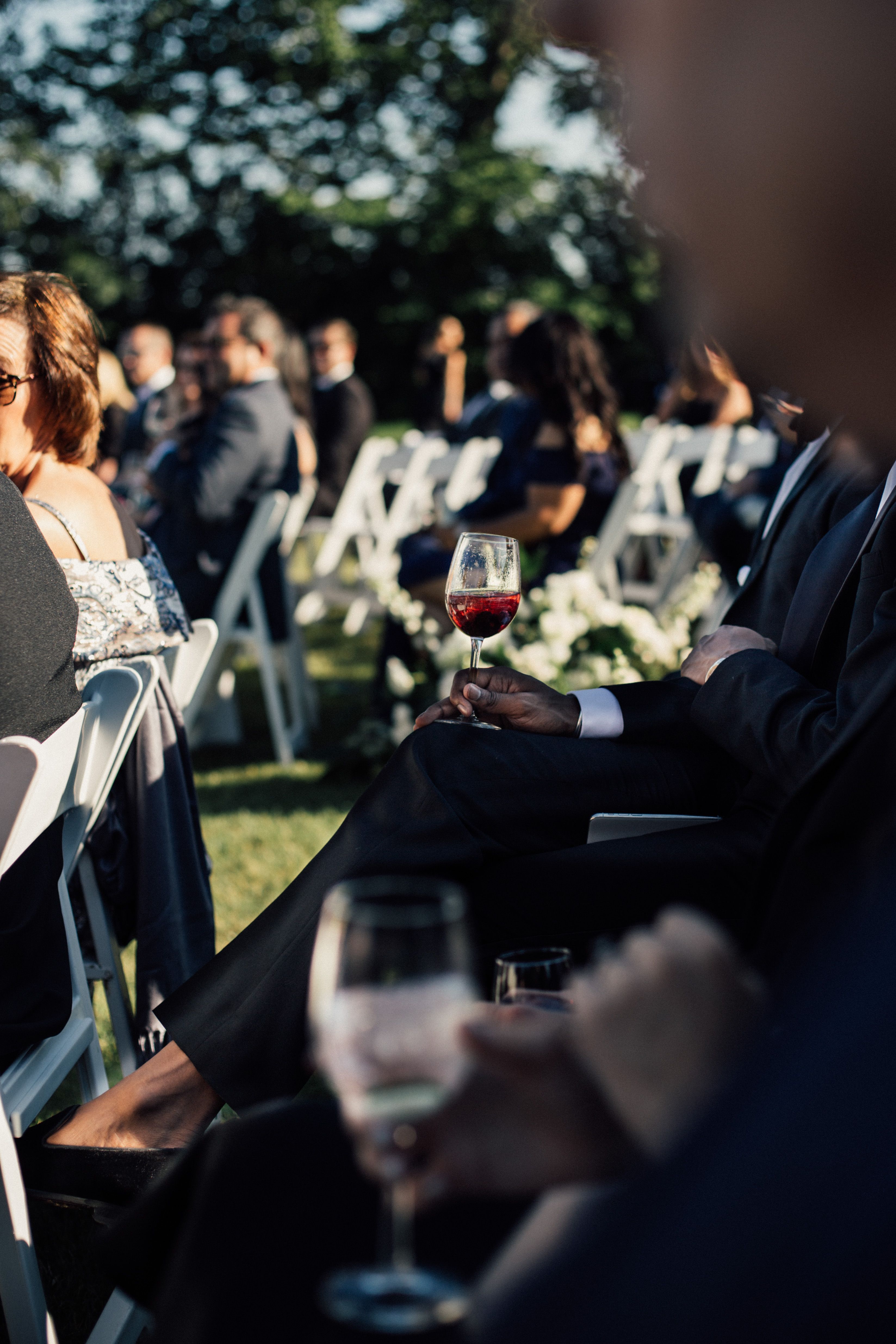
Sample Wedding
Sophie & Daniel — explore guest uploads, the private gallery, live slideshow and seating plan.

Sample Birthday
A lively party hub with photo challenges, memory prompts and a live memory wall.

Sample Corporate
A conference memory hub with moderated uploads and branded galleries.